
INSTALL SMART IPTV ON A SAMSUNG & LG SMART TV
- Turn on your Samsung Smart TV. Do not forget that your TV must be connected to the internet, if you want to download applications
- Click on Smart Hub. On your remote control, press the multi-color button in the middle. This button is called Smart Hub. With some remote controls, it’s a button with the drawing of a house. You arrive on My programs.
- Select Samsung Apps. With the arrows on your remote control, go to My Apps and select Samsung Apps by clicking the button in the middle of the arrows.
- Choose the “Most Loved” application category in the left side menu, you will see a list of applications on the right of your screen.
- Find the Smart iPTV app : In the “Best Loved” category, select the “Smart ipTV” app. The application page opens.
- Tap Installation. Once on the application page, click Upload, then Install, and then Run. That’s it, you’ve got the Smart IPTV app on your Samsung TV.
- Be aware that the application is not free, it still offers you a trial period of 7 days.
- The price will be the application “Smart iPTV” is 5.49 € to pay once on the developer’s site : https://siptv.eu/activation
- Once the process is complete, you will arrive directly on the Smart iPTV application page and you will be able to start using it.
HOW TO CONFIGURE SMART IPTV (SIPTV) ON SMART TV
It happens that you will encounter problems of playlist loss suddenly or beug on some channels (fail connect, buffering.. etc.) in the smart IPTV app on your TV or box, in some cases to install IPTV subscription you just need to put the link back and everything will rework again.
To learn how to install IPTV subscription with an m3u link in the smart IPTV app through your MAC address from any browser, it’s easy.
Follow these steps:
Step 1: download the m3u file using your link
- Open your Internet browser (Firefox, chrome, Internet Explorer.. etc
- Paste the m3u link in the address bar and press “enter” to download the file to your computer:
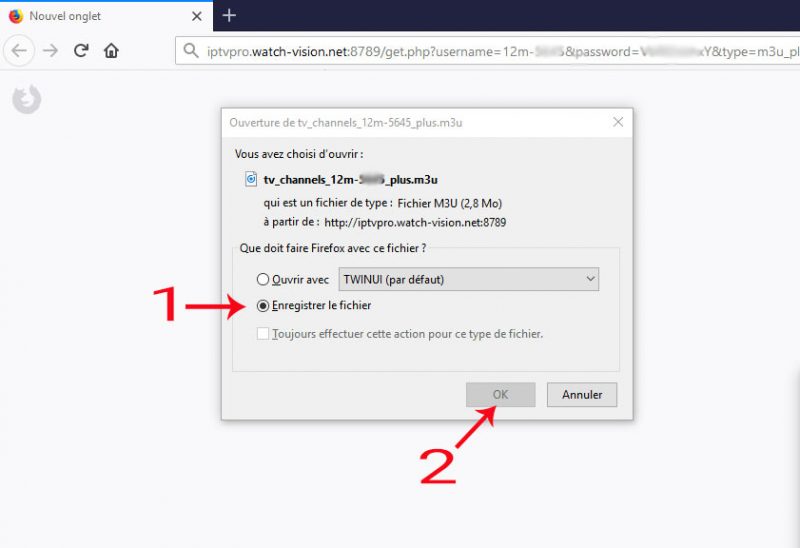
Step 2: insert the downloaded file + link in the smart IPTV app:
Visit this page: siptv.eu/mylist
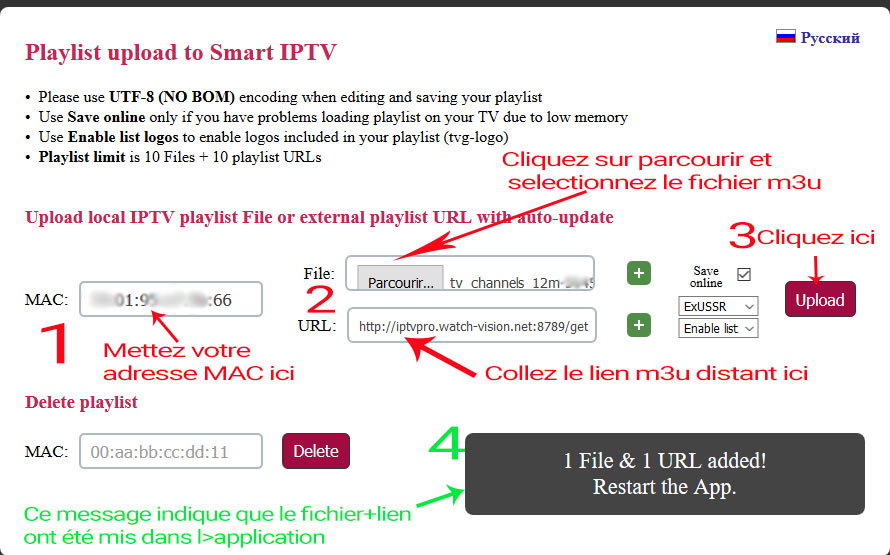
1-enter your MAC address in the “MAC” field
2-on “file” click “Browse” and select the file you have uploaded in step 1 and paste the m3u link on the field “URL” (do exactly as the photo below)
3-click on the “upload” button
4-wait for file upload + link, the following message will appear: “1 file & 1 URL added! Restart the app. “
5-return to your smart TV and restart the smart IPTV application (press reload (0) or the restart button), if the channel list does not load automatically, restart the TV and reboot the application, but if a message appears ” Server connection timeout “do not press OK and then wait for full load” this may last up to 60 seconds depending on the speed of your Internet connection.
And it’s gone you have install IPTV subscription?
NB: If you have a smart TV brand LG, change the parameter “STREAM PLAYER TYPE” and put it on NC AUTO instead of WebOS.
For more practical info on installing IPTV subscription or even our FAQ section